Go to: https://zoom.us/meeting#/upcoming
1 - Schedule Meeting
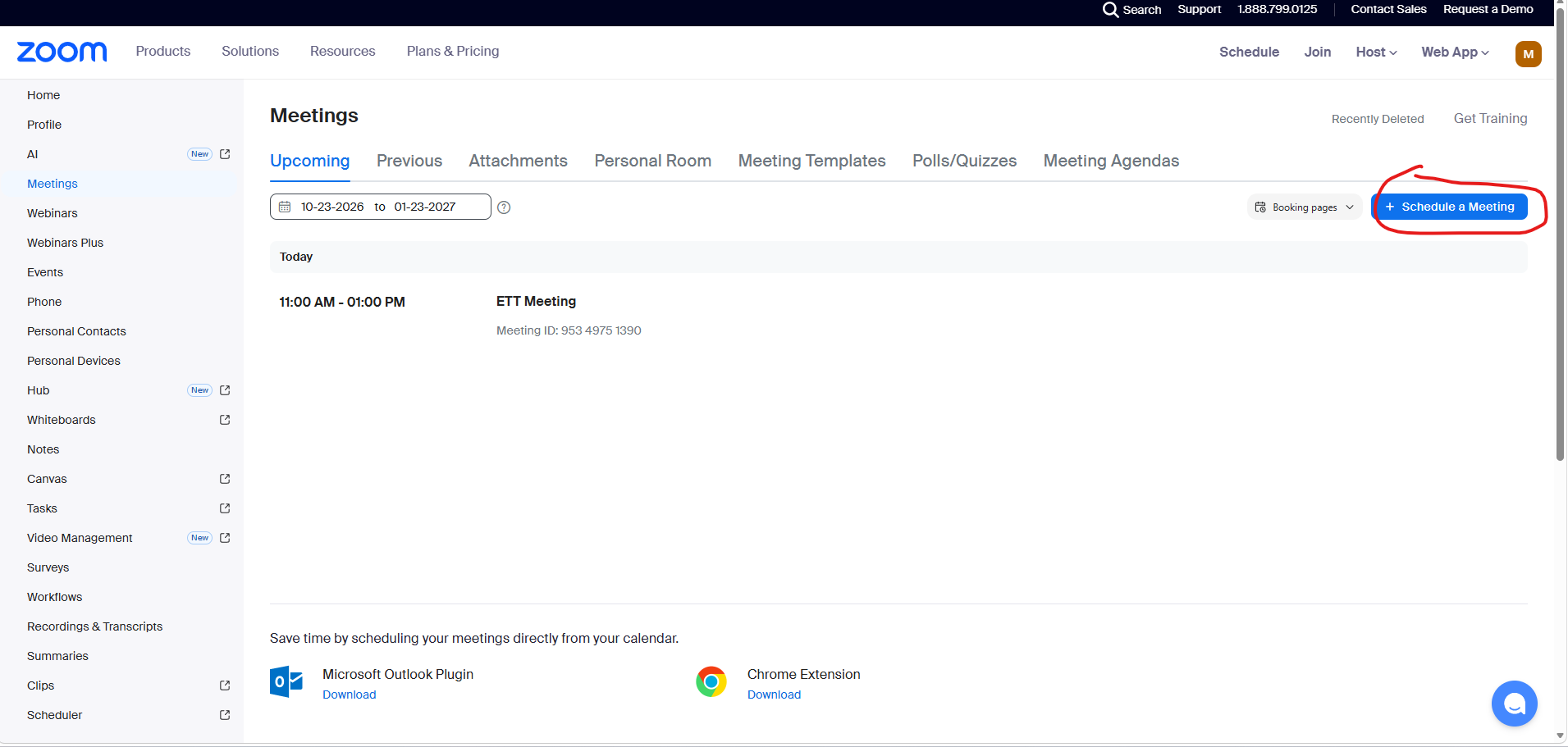
2 - Scrool down then under template select ETT Meeting template
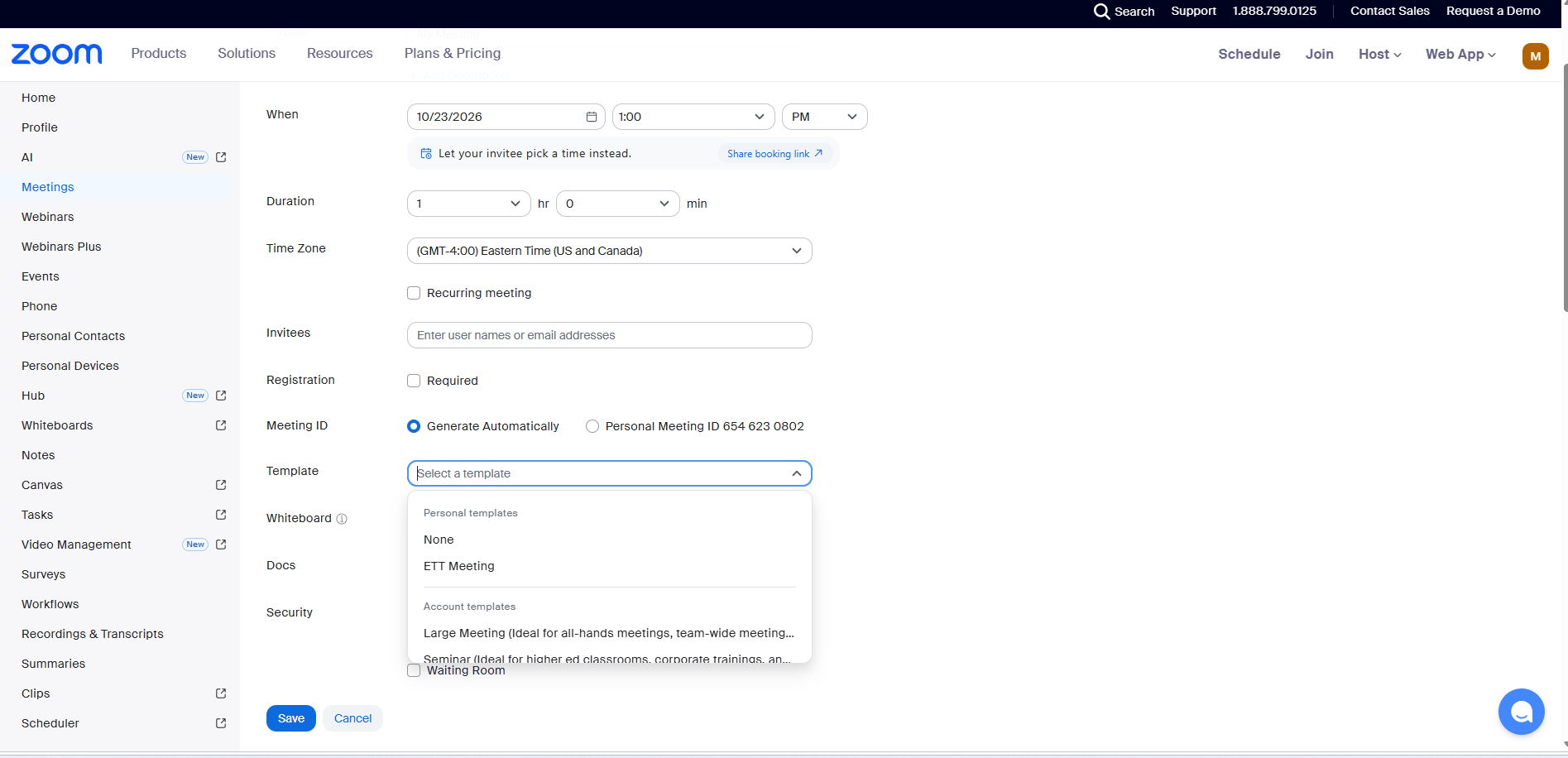
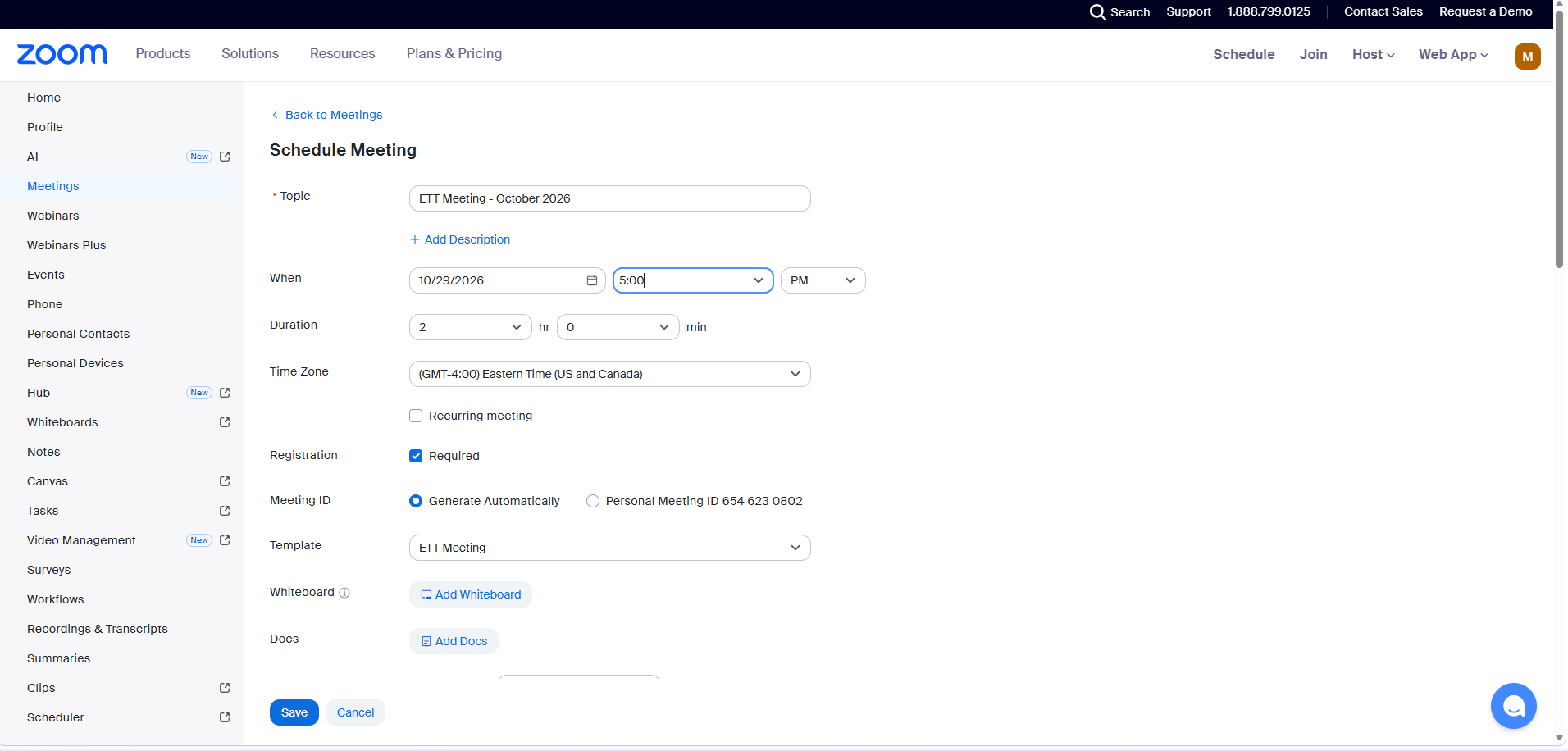
3 - Change meeting title and set to ETT Meeting - MONTH YEAR (example: ETT Meeting - October 2026)
Change meeting start date as provided in the email
Change duration to 2 hours
Ensure REG is required
No whiteboard
No Docs
Passcode is set
as pictures below:
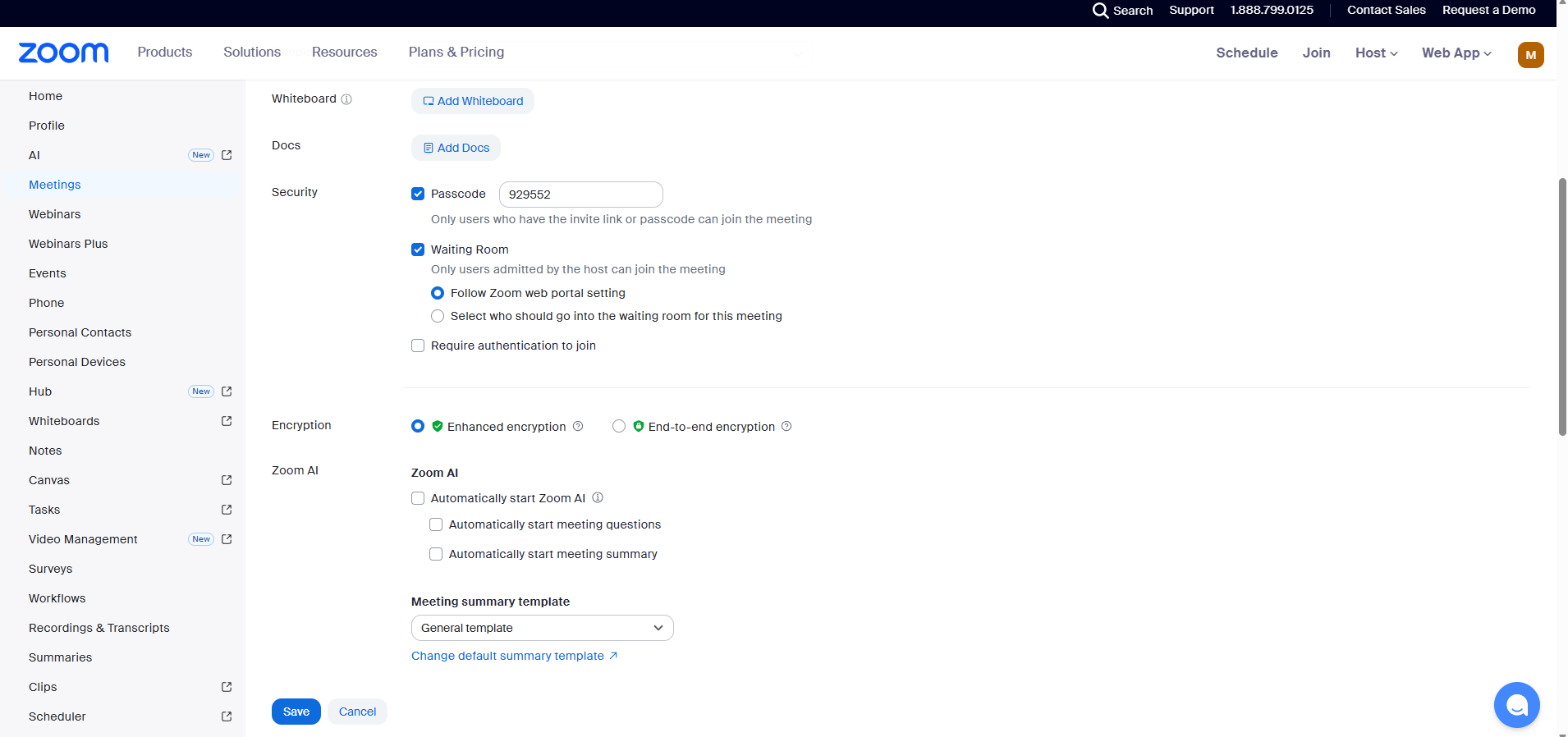
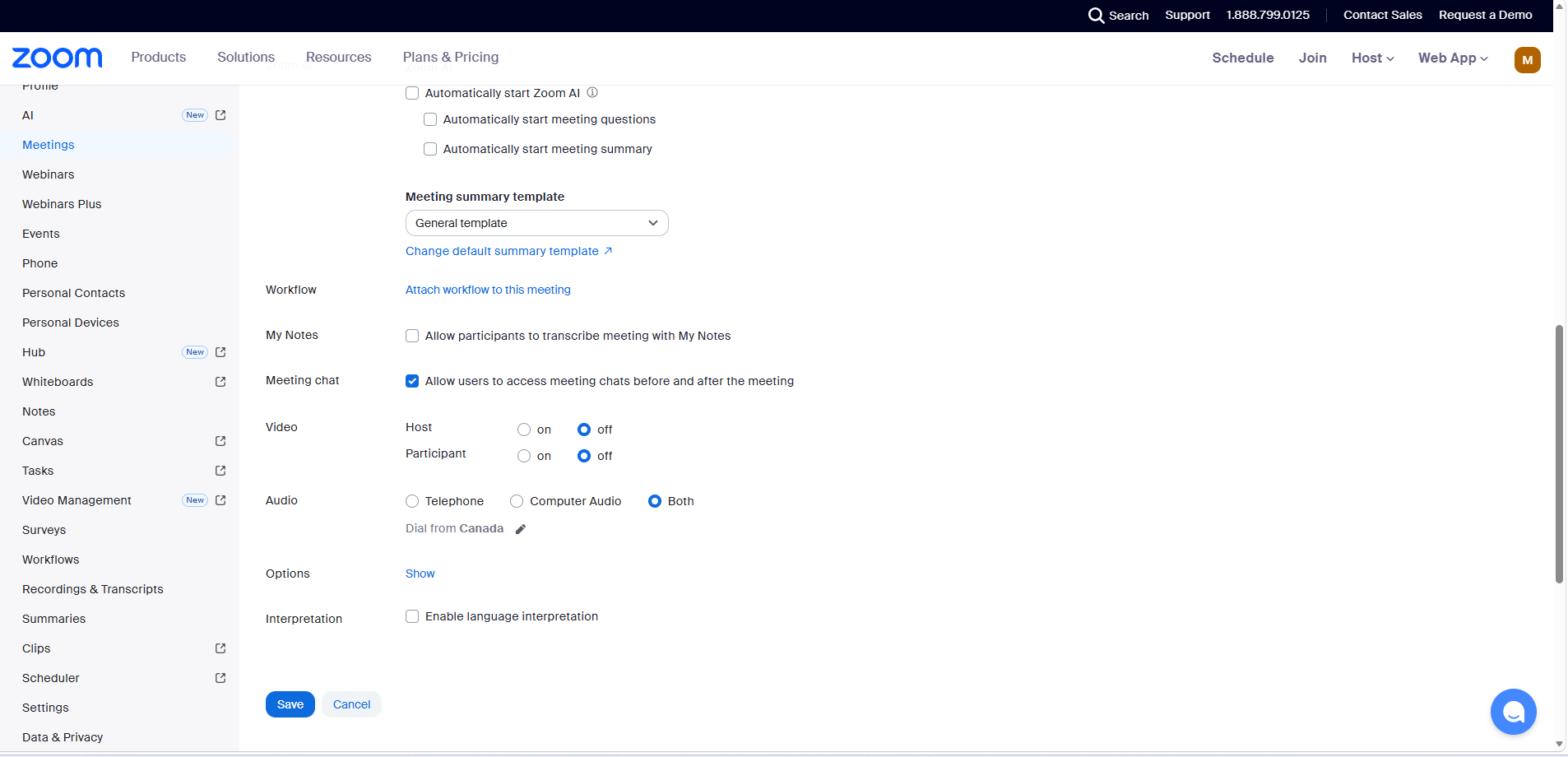
4 - Uncheck Meeting chat - Allow users to access meeting chats before and after the meeting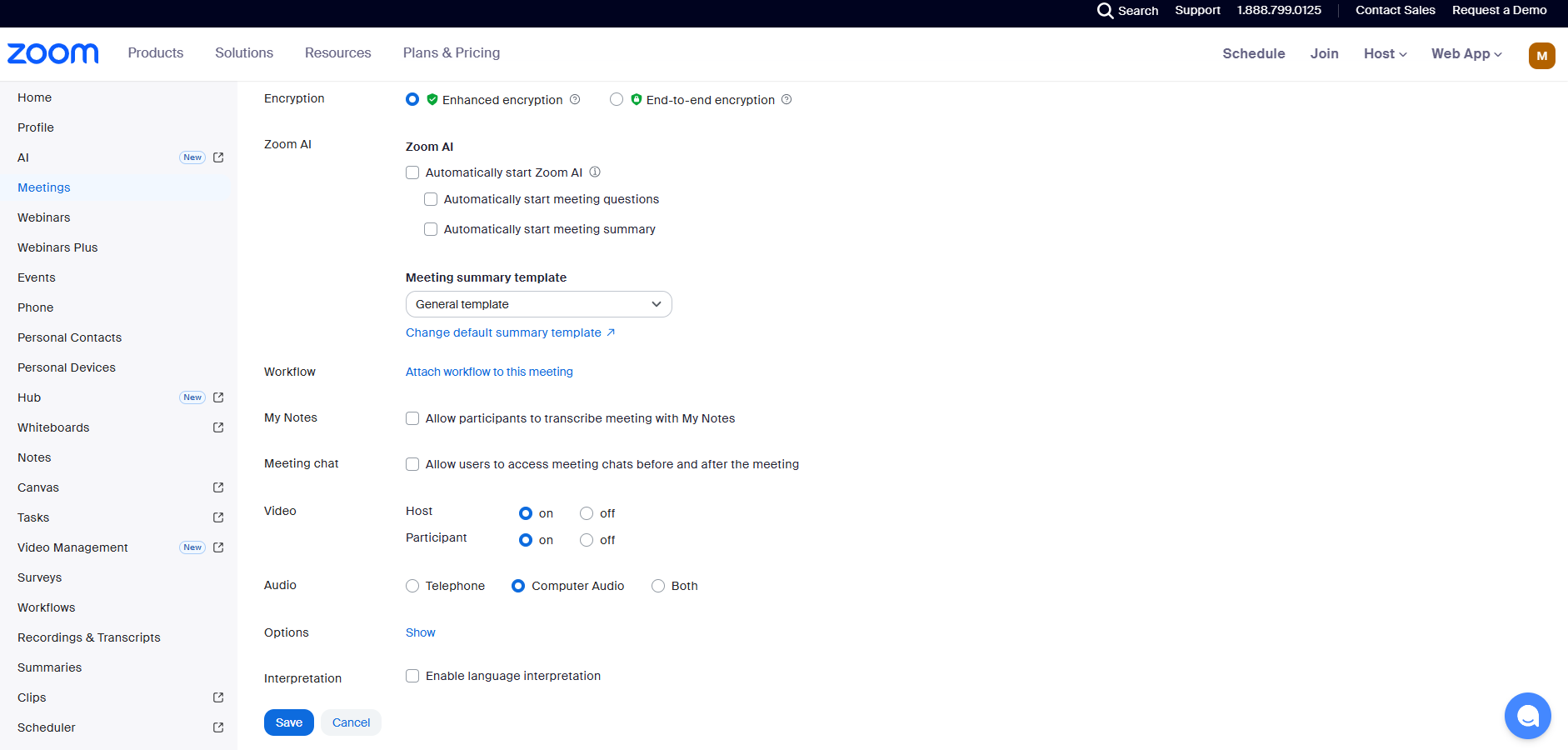
5 - Save then Click Copy Invitation and send to Matt (mdusenbury@ett.on.ca) after finish all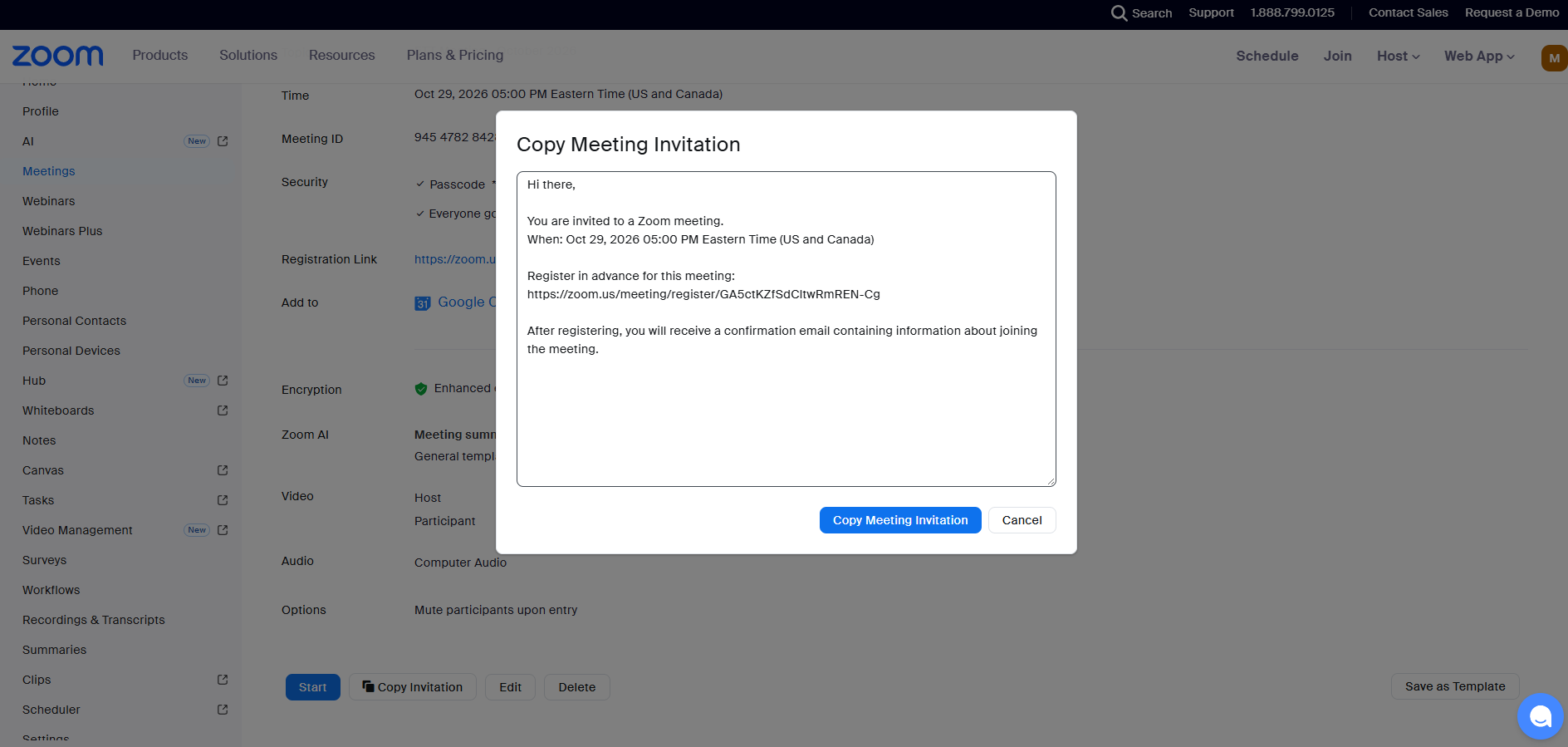
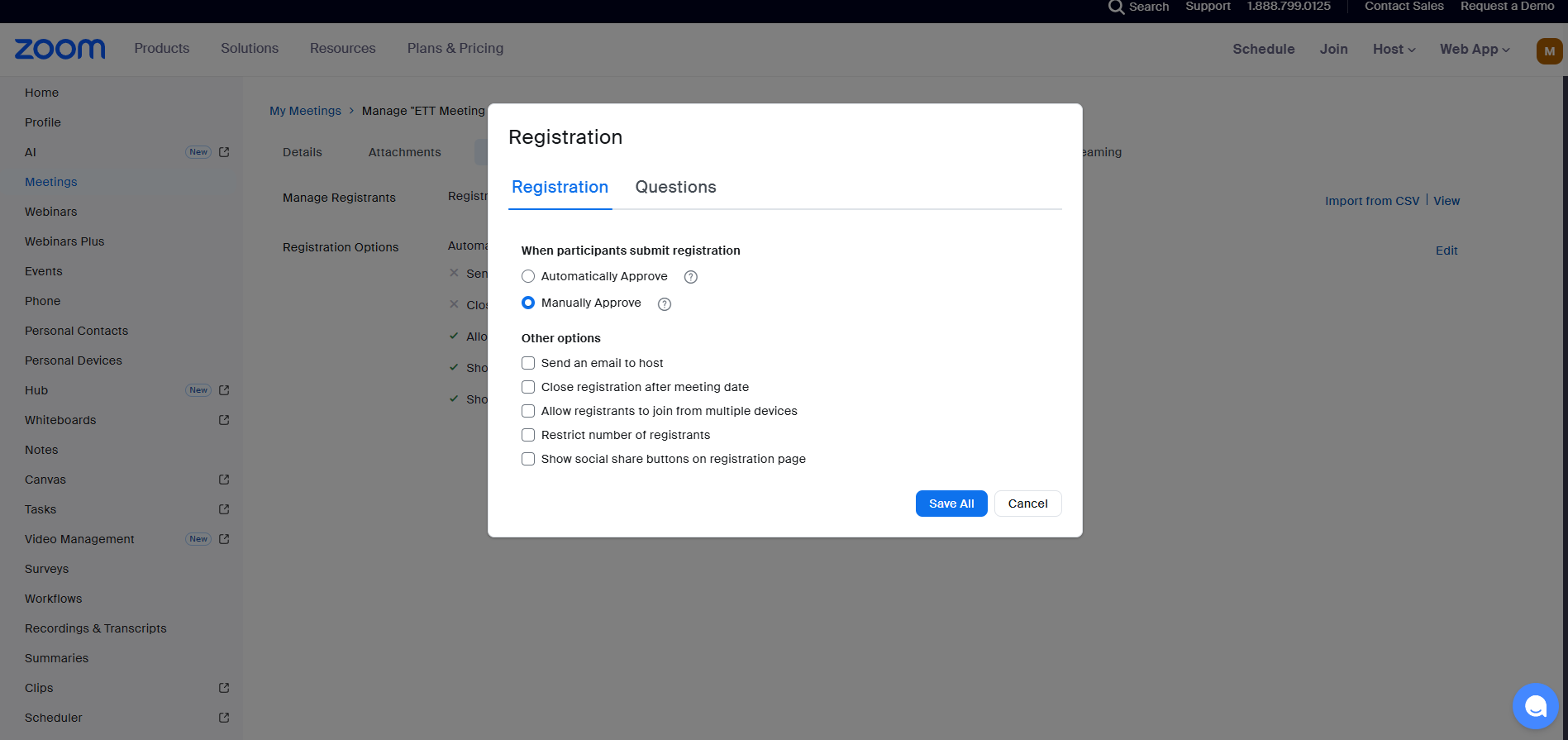
6 - Skip Attachments, go to Registration top bar, edit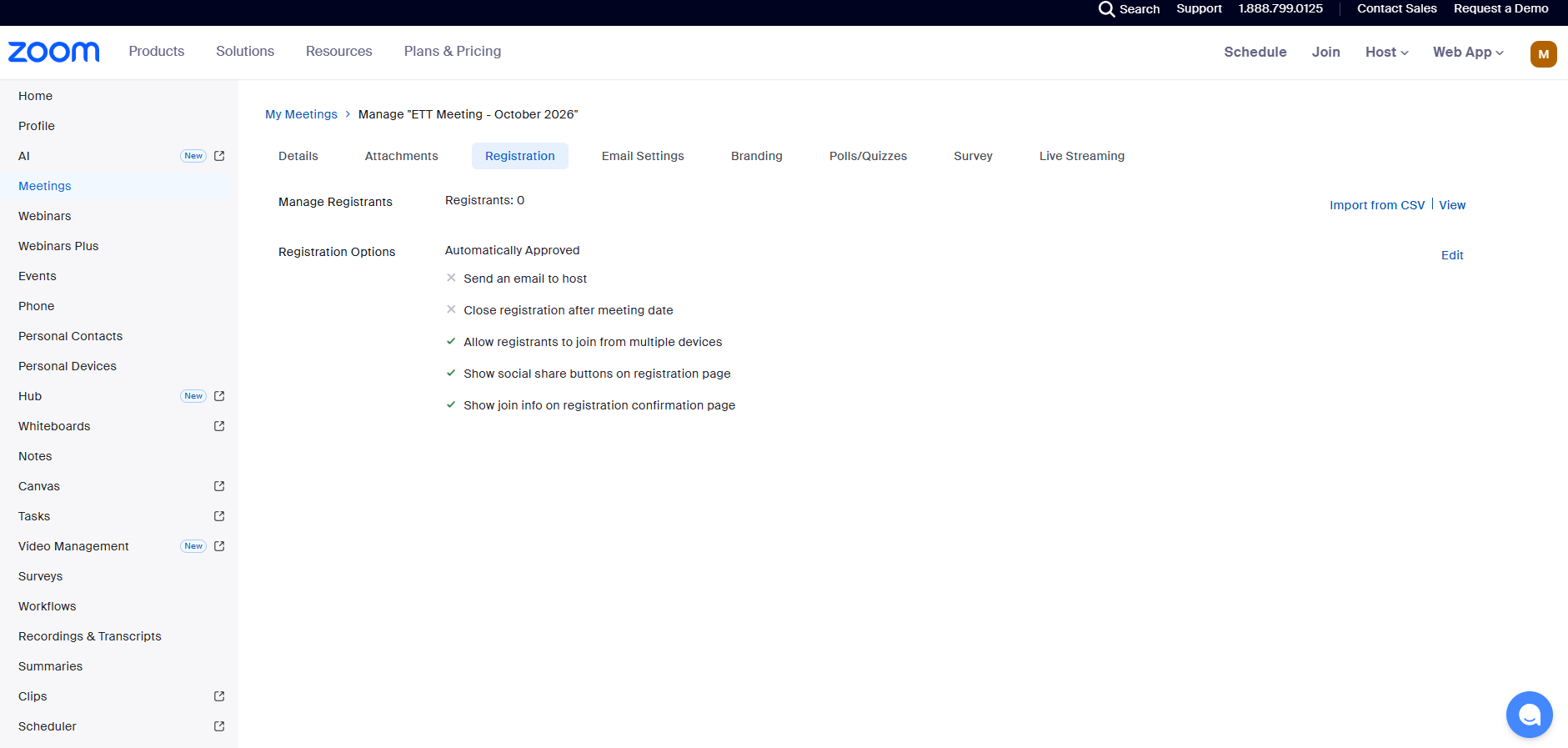
7 - Change to Manually Approve and Clear rest
Leave Questions (Last name needed)
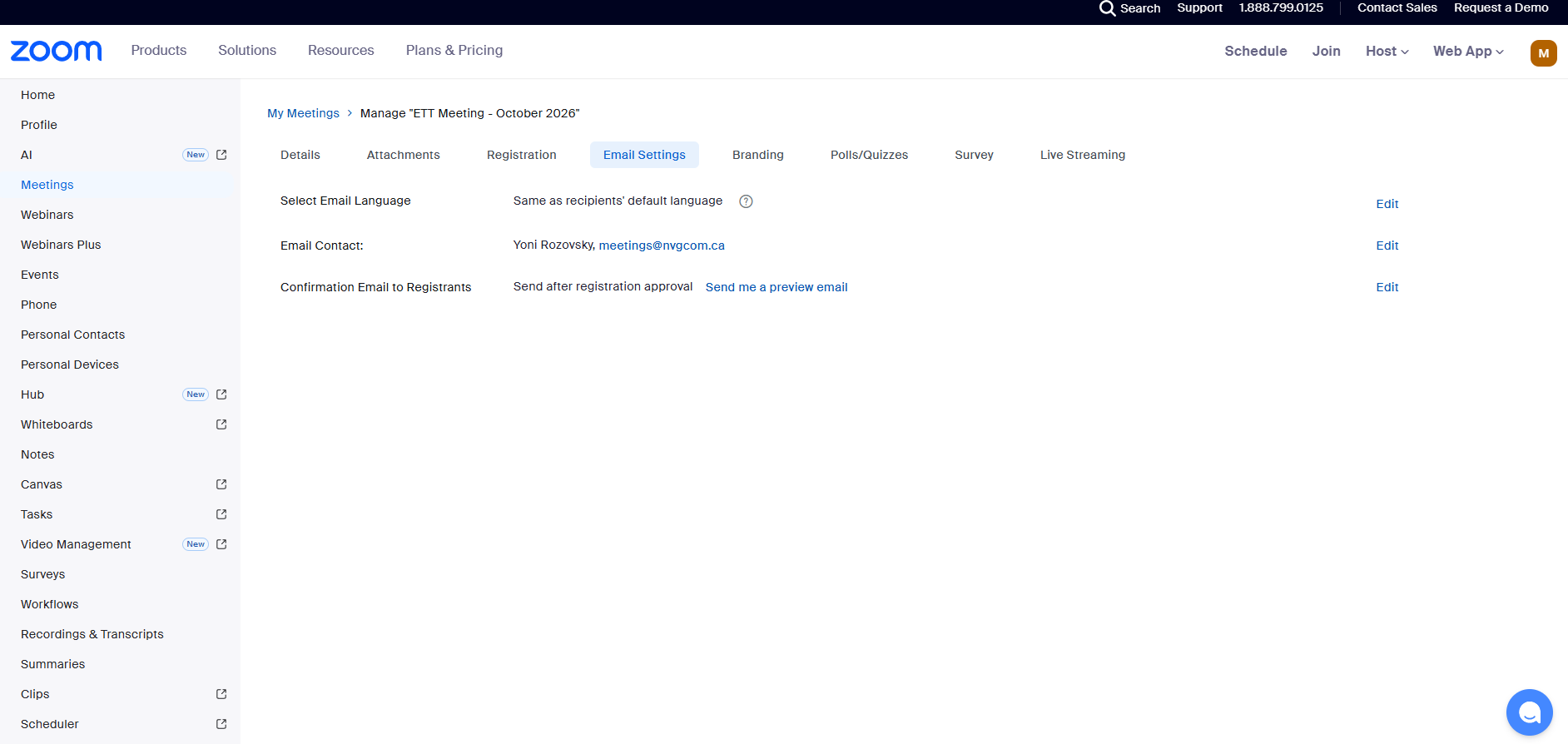
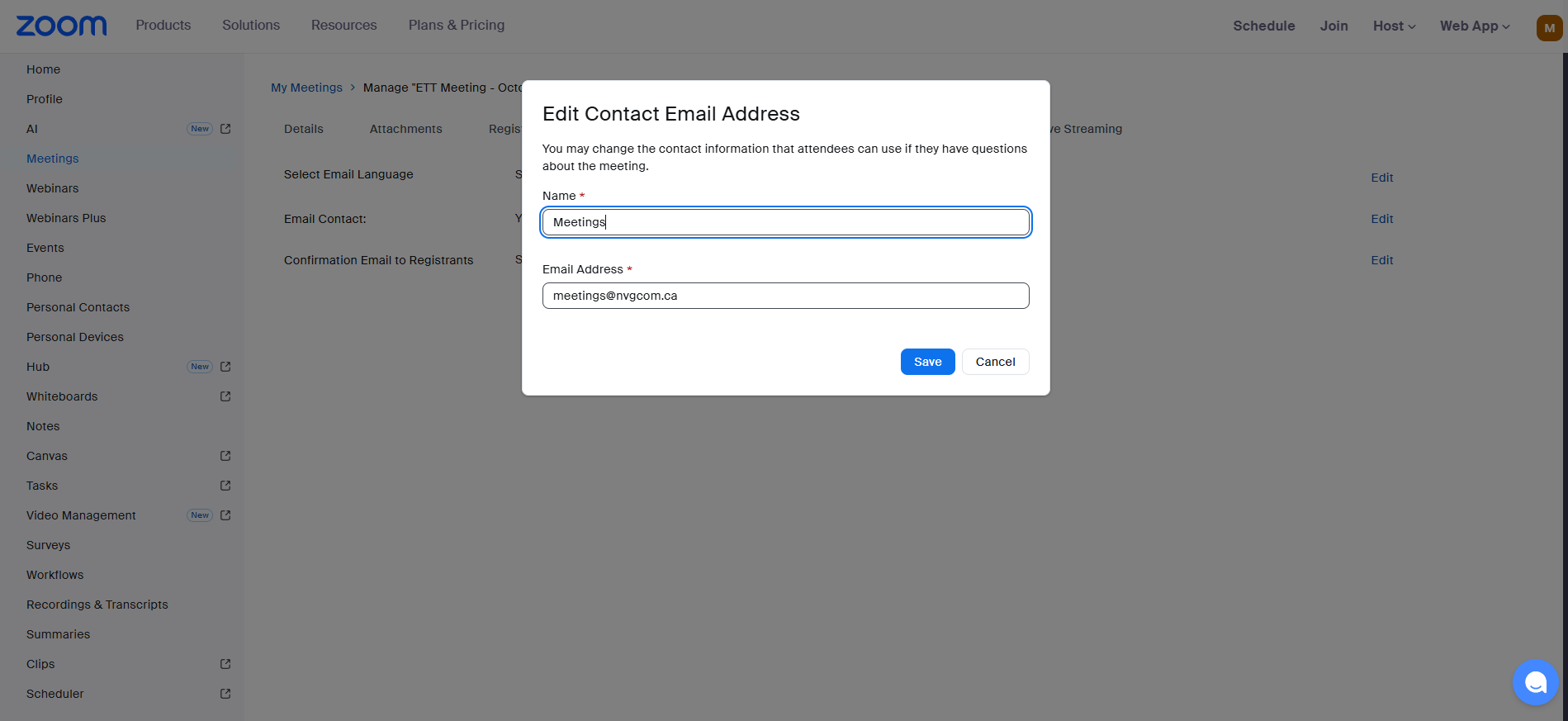
8 - Email settings , Edit Email contact change name to: Meetings
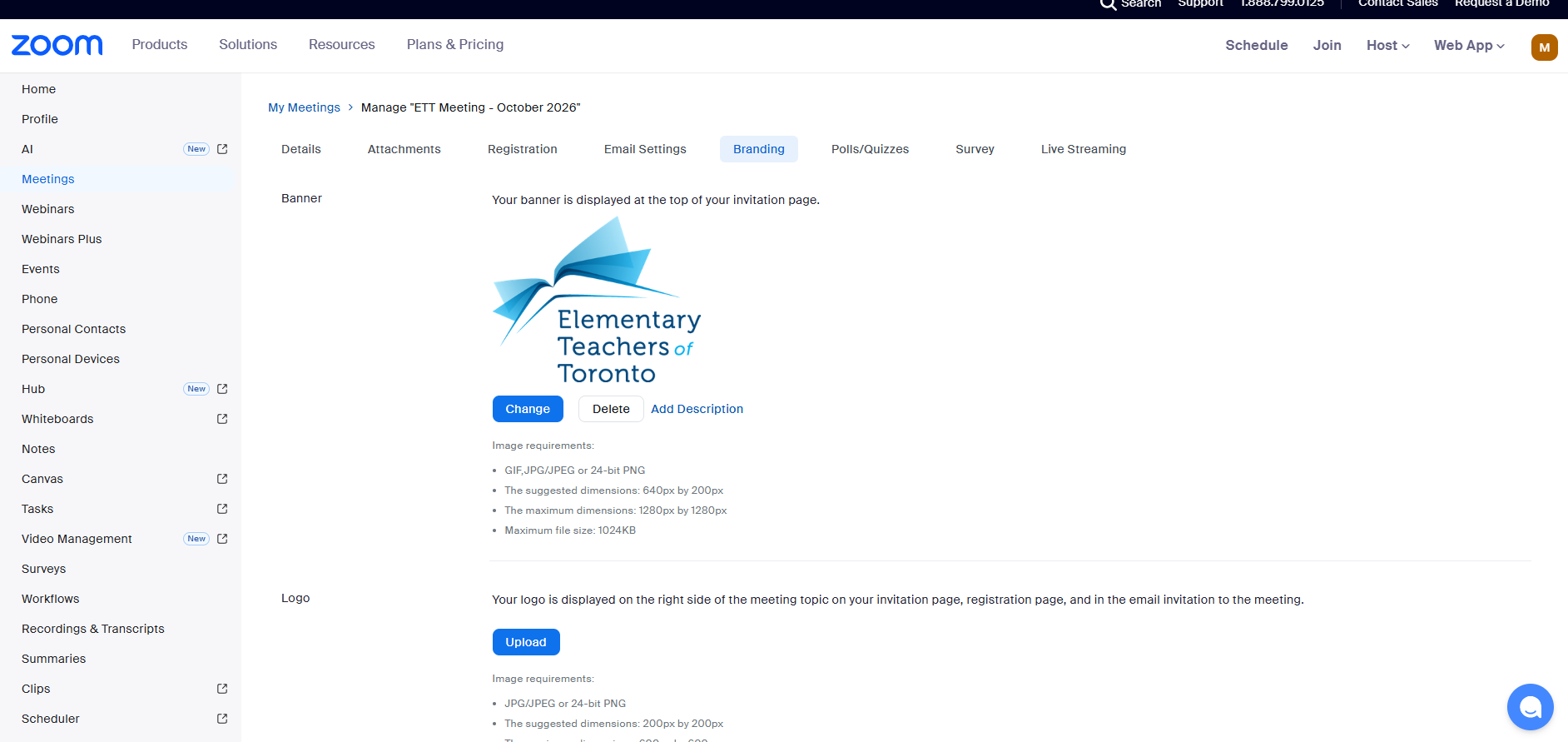
9 - Branding add below image to Banner only and not logo

10 - Polls/Quizese set the poll for the month prior example as below: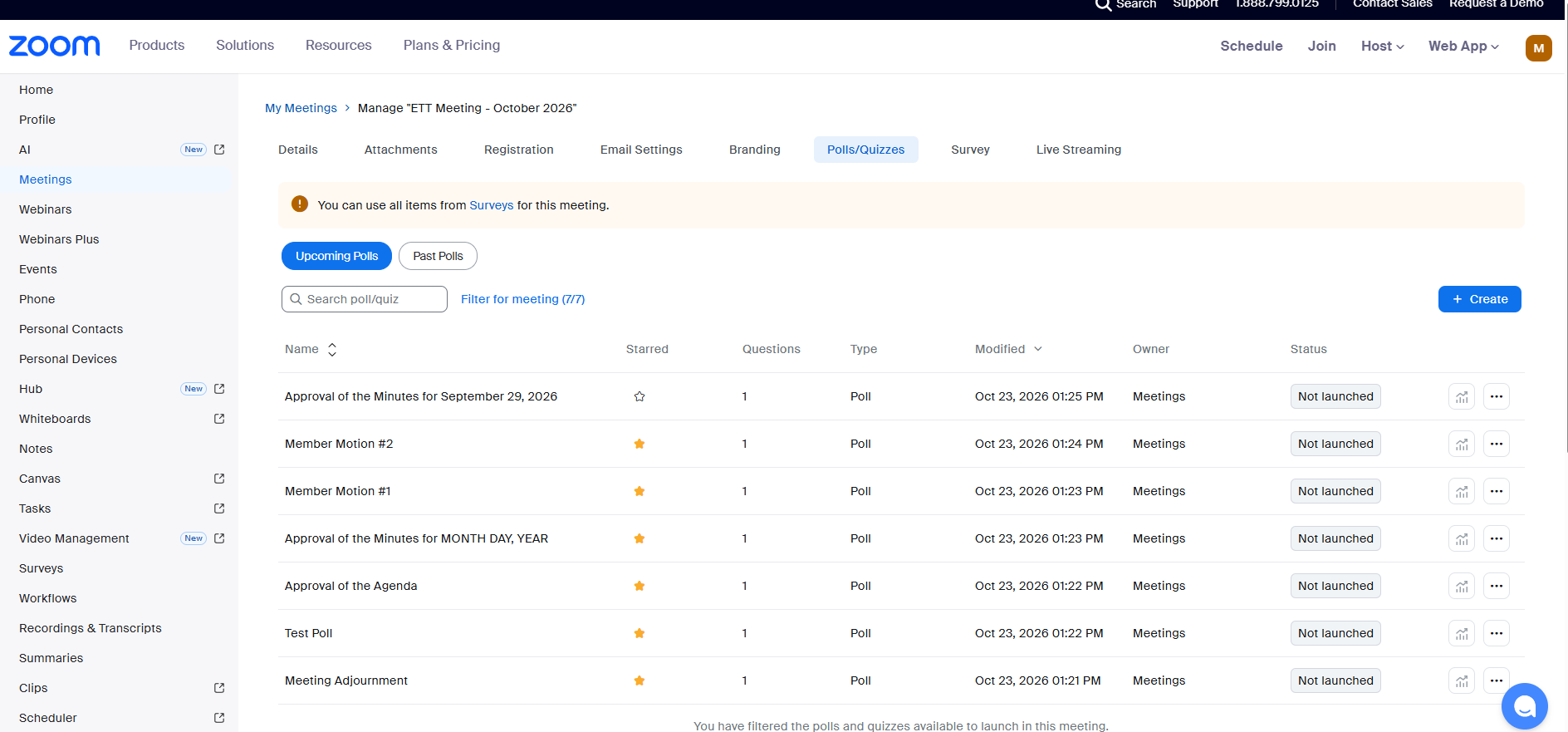
Choices are always: (save to libary)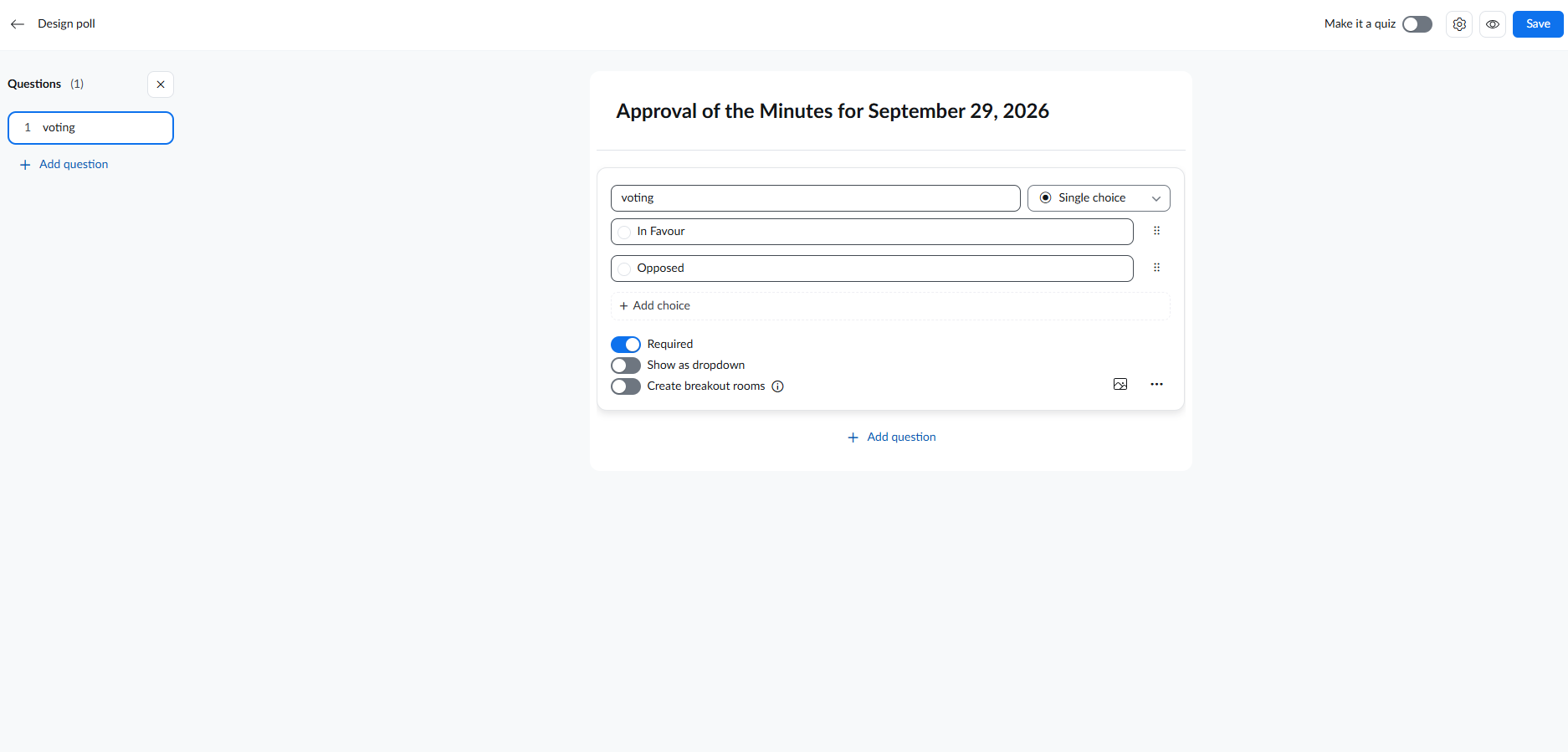
There is no save button, auto saves so far
11 - Copy paste answers for test voting if they dont see.
Please ensure to allow popups if you joined from the browser, app no restrcitions or rejoin from the app
12 - Return to the meeting, under Registration and click Edit and approve members via sperate list sent from Matt. Verify from the list
DURING DAY OF MEETING PREP
13 - Rename Meetings (host) to Speakers List
Members message the "Speakers List" for Pro, Con, Point and tech and thoughts
Rename Other user to Presentation
Presentation is used just for showing the presentation and clicking next
Open Particpants and 3 dots then rename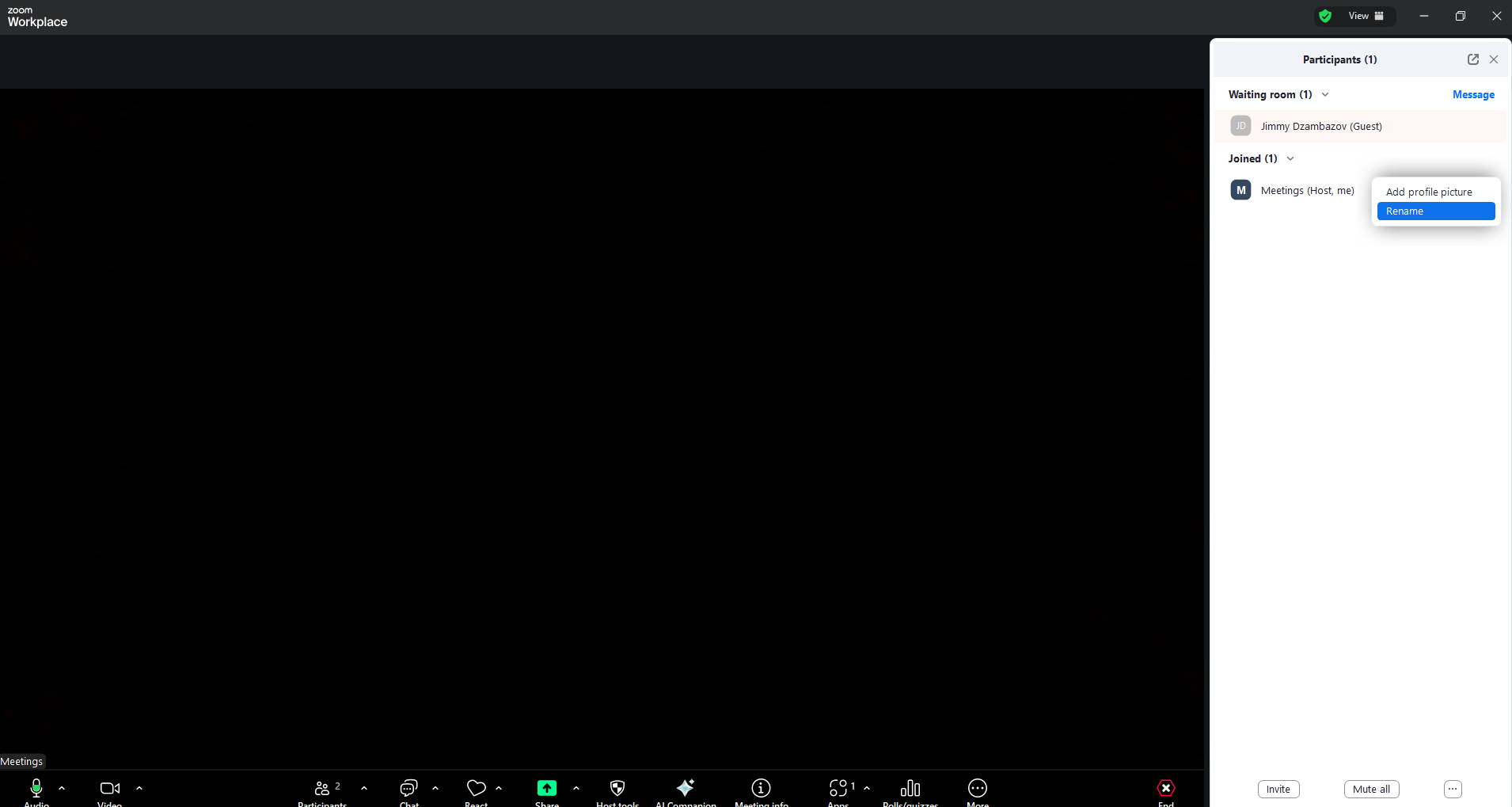
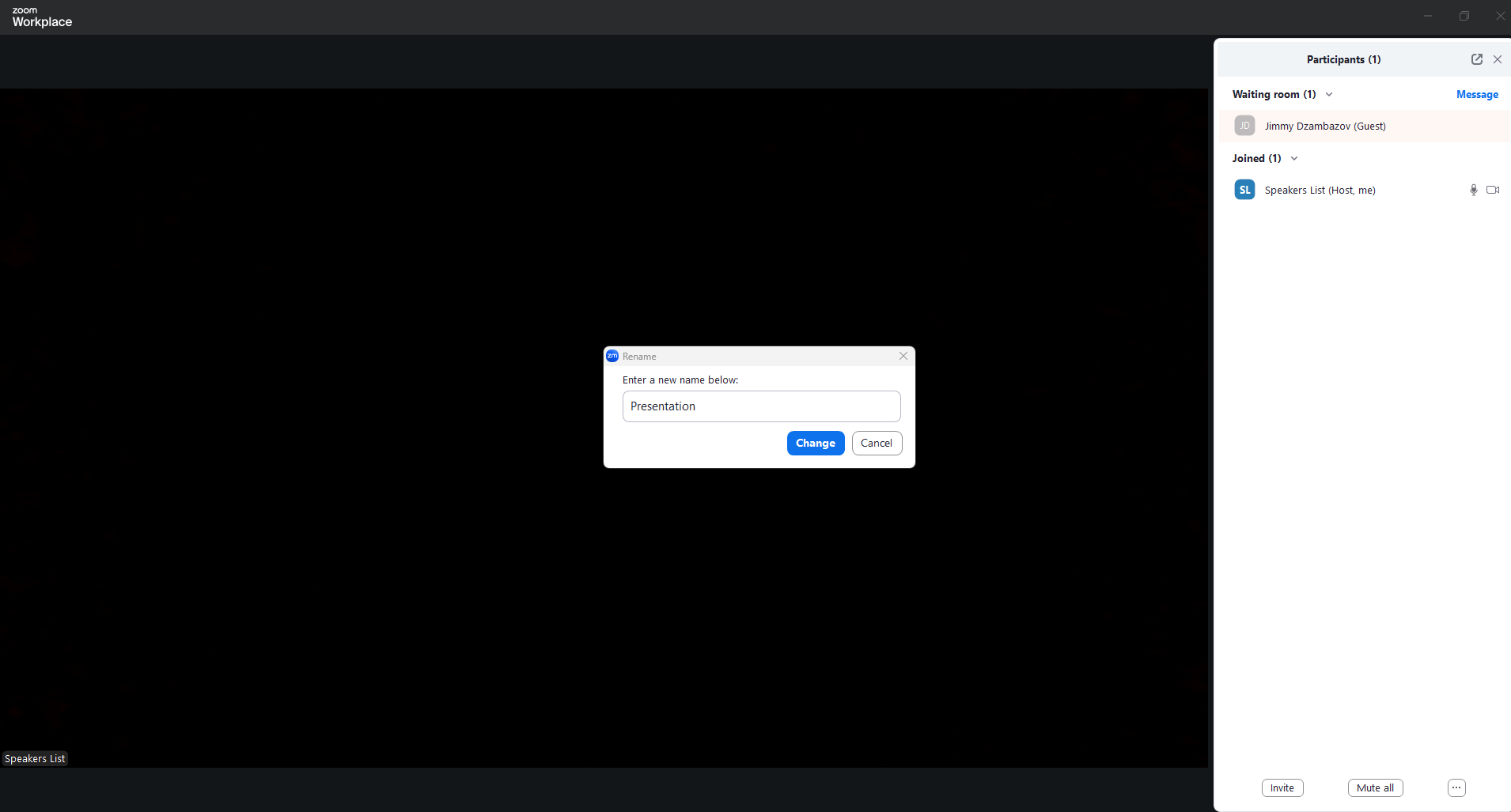
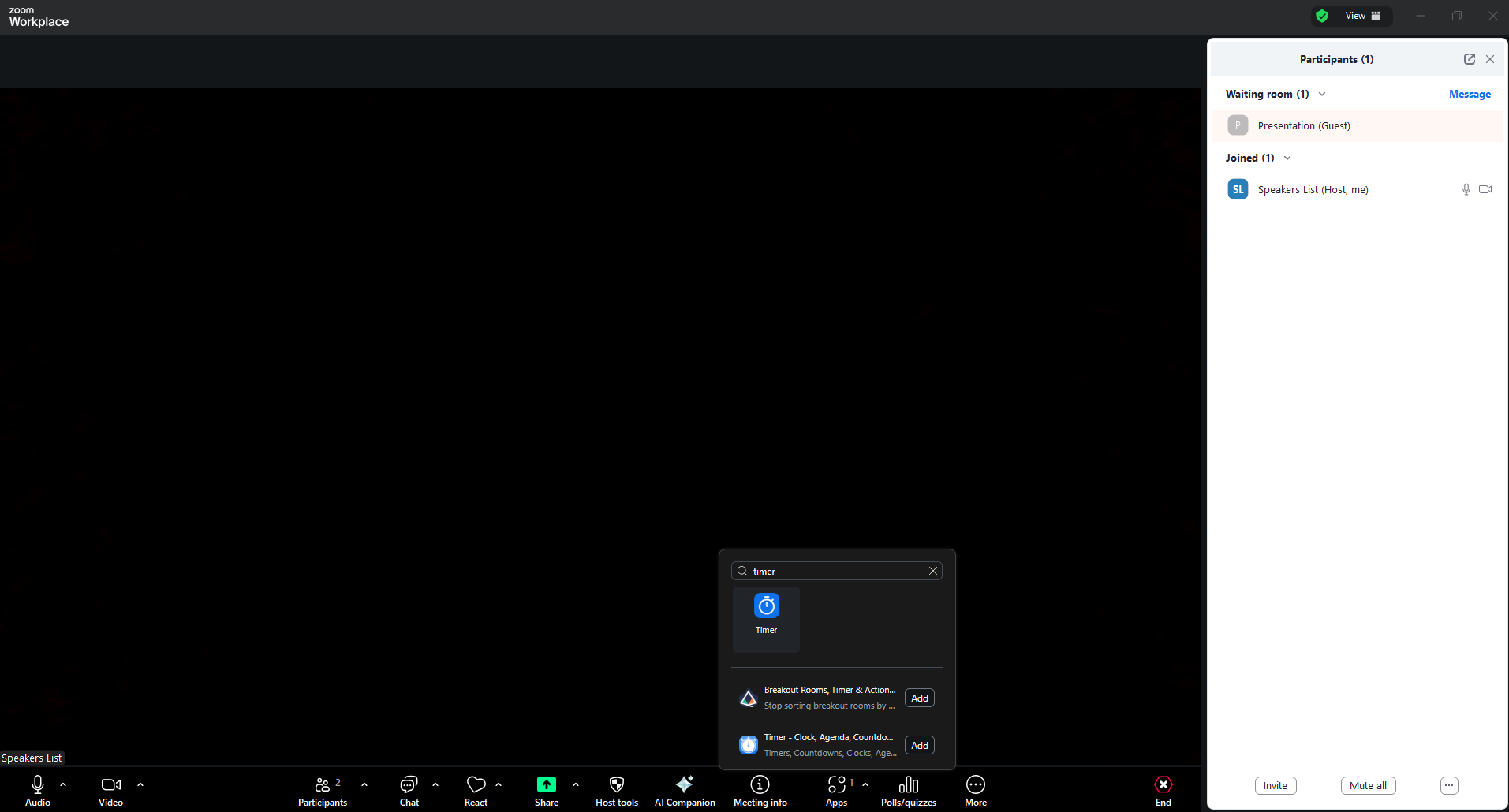
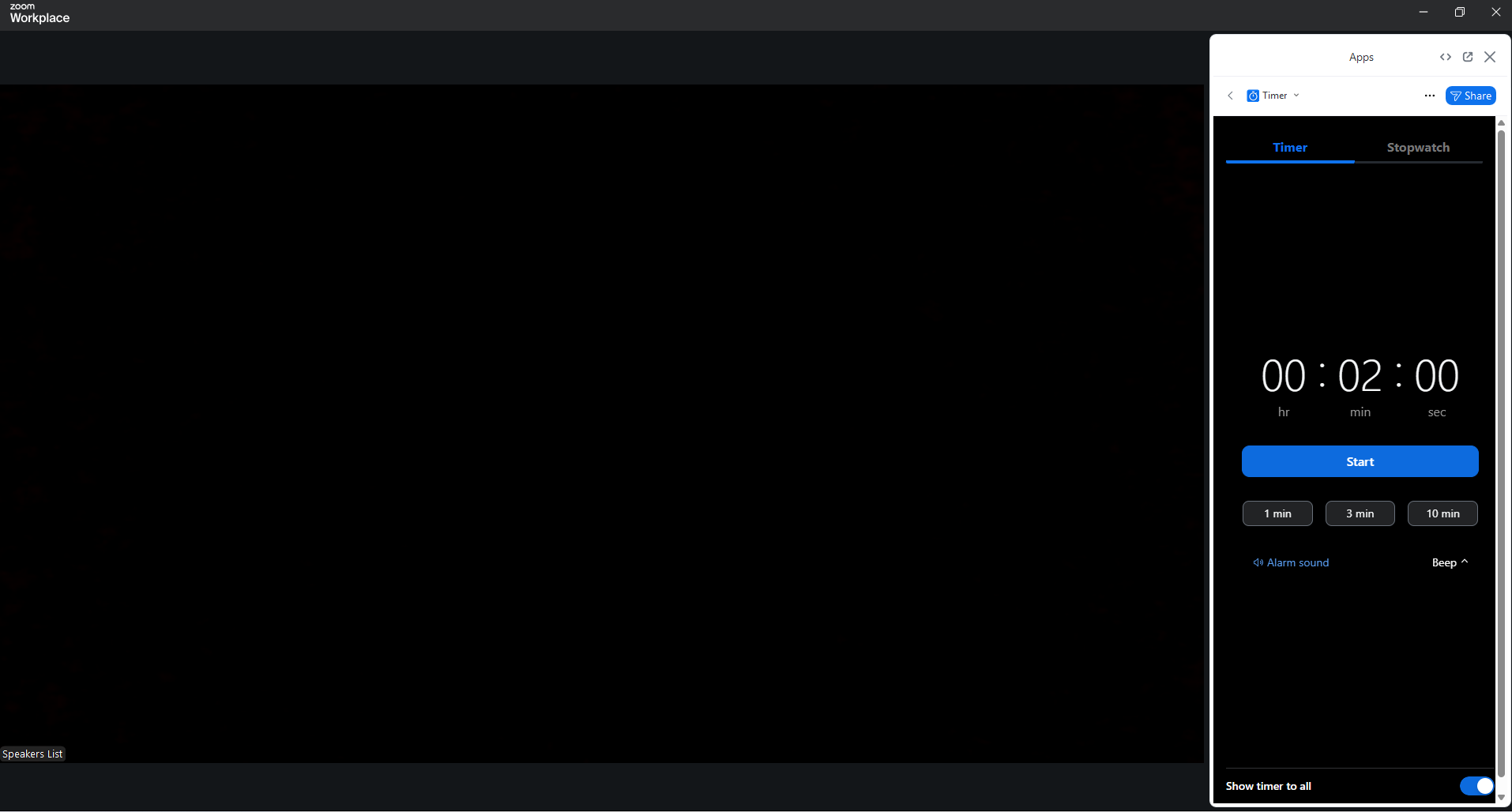
14 - Open Timer under apps and set to 2 min
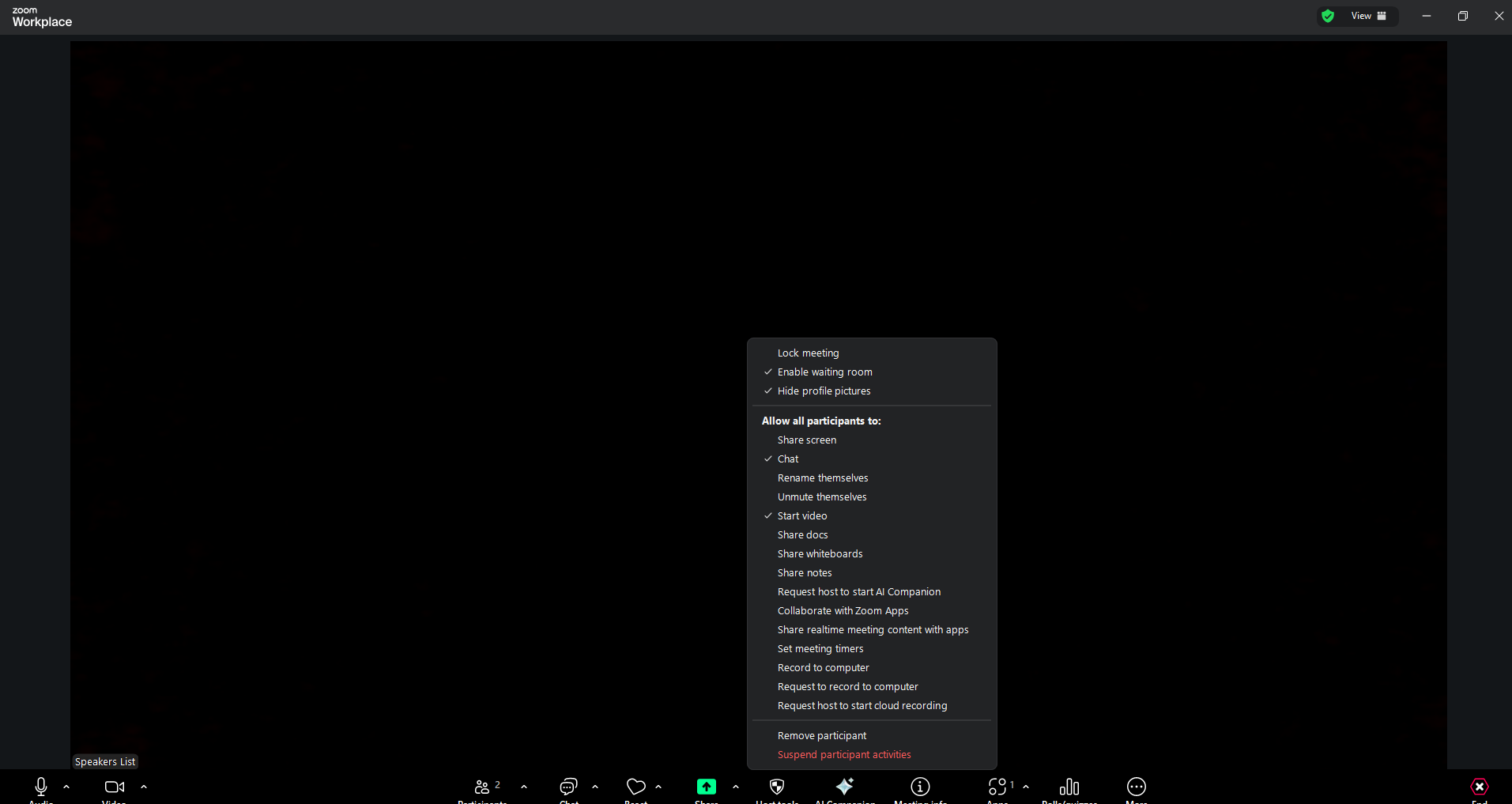
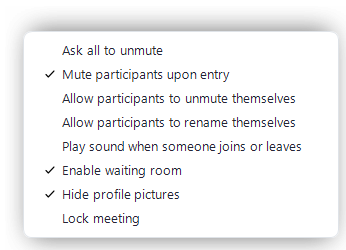
15 - Click Host tools and set to below
15 - Click Chat then 3 dots and change to Host and co-hosts
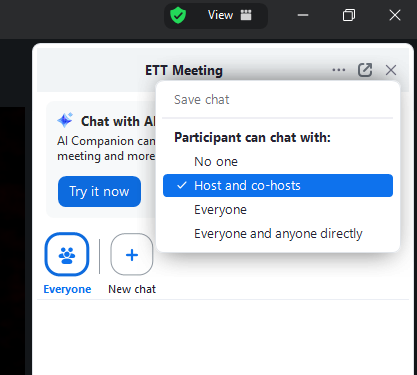
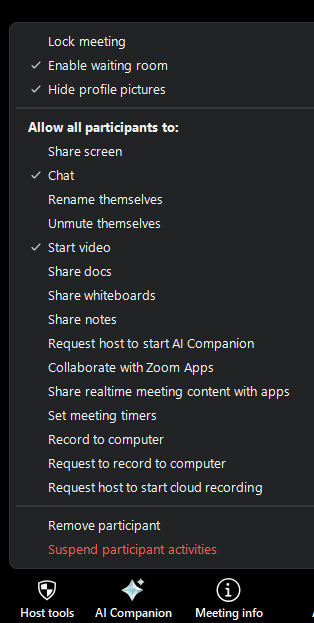
16 - Ensure these are correct usually are. Particpants then 3 dots bottom right
17 - Ensure to Mute your own video and Mic
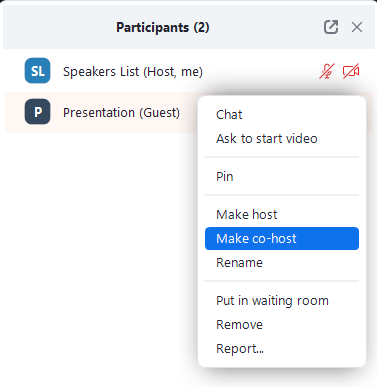
18 - Set exec to cohost
19 - Photo is example, dont set Presentation to cohost, you set the exec members to cohost as they need
20 - pop out all the windows to monitor all. When sharing screen share full screen so they get full res. when they make changes you need to esc to pop out of fullscreen and then "slideshow" to pop back in.
Notes: when adding pro con point on meetings same esc then slideshow back to fill it
Was this article helpful?
That’s Great!
Thank you for your feedback
Sorry! We couldn't be helpful
Thank you for your feedback
Feedback sent
We appreciate your effort and will try to fix the article