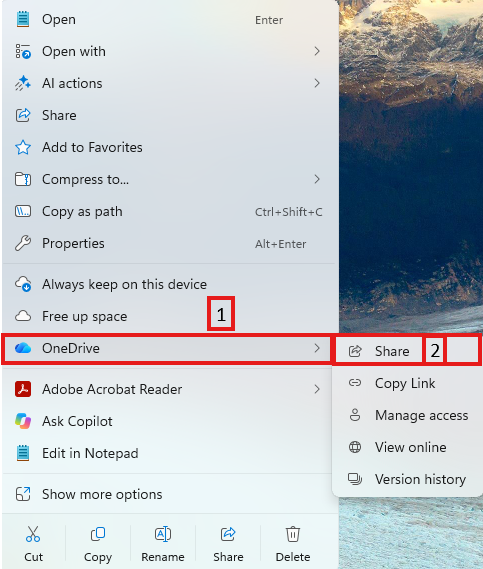
1. select the folder or file you would like to share with a password, then select "OneDrive" then "Share"
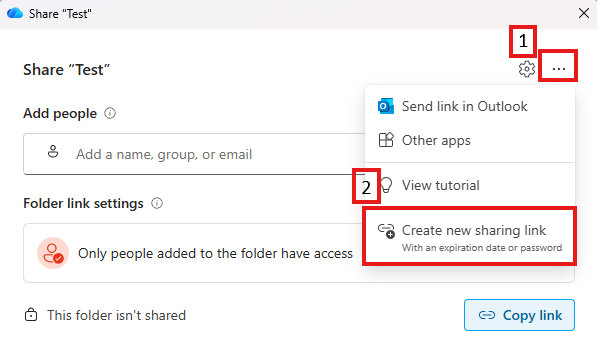
2. In the popup select the 3 dots in the top right corner then "Create new sharing link"
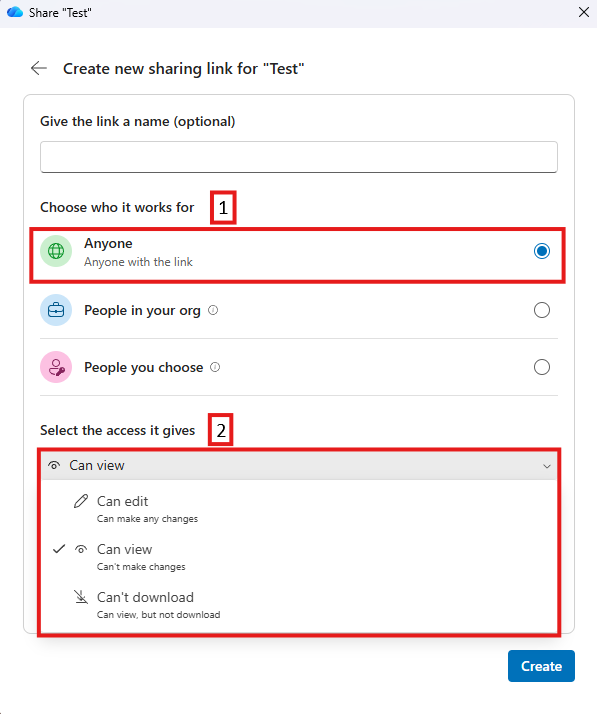
3. In the new menu select "Anyone", then under "select the access it gives" select the permission level you would like for the person you are sending the folder/file to have
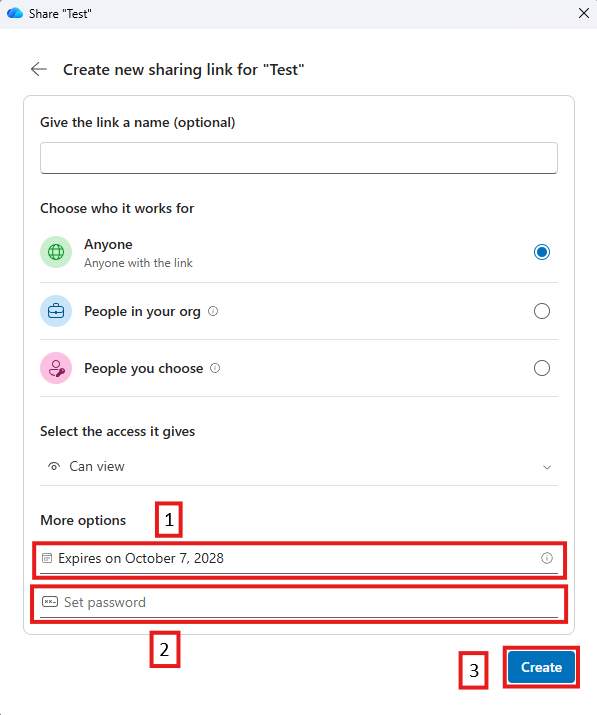
4. After select the date you would like the link to expire on then set the password, after the password is set you can click on "Create"
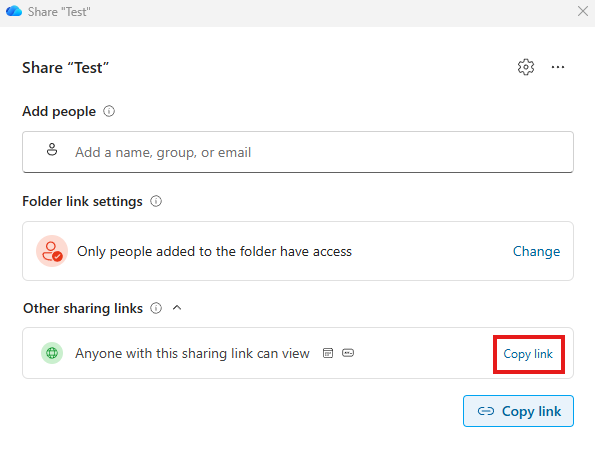
5. Then under "Other sharing links" select "copy link" to share the password protected link
Was this article helpful?
That’s Great!
Thank you for your feedback
Sorry! We couldn't be helpful
Thank you for your feedback
Feedback sent
We appreciate your effort and will try to fix the article